

Installing WordPress is usually a breeze—download the files, upload them to your server, create a database, and run the famous five-minute install script. But let’s be real: things don’t always go smoothly. Whether you’re a newbie setting up your first blog or a seasoned developer launching a client site, installation errors can pop up and turn what should be an exciting process into a frustrating headache. These issues often stem from server configurations, file permissions, database mishaps, or even simple human errors like typos in credentials.
In this comprehensive guide, we’ll dive deep into five of the most common WordPress script installation errors that users encounter in 2026. I’ll explain what causes each one, why it happens specifically during installation, and provide step-by-step solutions to get you back on track. We’ll cover everything from basic troubleshooting to more advanced fixes, including tips on prevention. By the end, you’ll not only fix your current problem but also arm yourself with knowledge to avoid these pitfalls in future setups. Let’s get your WordPress site up and running!

How to install WordPress – Advanced Administration Handbook …
1. Error Establishing a Database Connection
This is arguably the most frequent roadblock during WordPress installation. You navigate to your domain after uploading files, and instead of the setup wizard, you’re greeted with the dreaded message: “Error establishing a database connection.” Your site can’t communicate with the MySQL or MariaDB database, which is essential for storing all your content, settings, and user data.
What Causes It?
- Incorrect Database Credentials: Typos in the database name, username, password, or host in your wp-config.php file are the top culprit. During manual installation, you edit wp-config-sample.php and rename it, but one wrong character can break everything.
- Database Doesn’t Exist or Permissions Issue: If you forgot to create the database via your hosting panel (like cPanel or phpMyAdmin), or the user doesn’t have full privileges, connection fails.
- Server Problems: Overloaded servers, downtime, or configuration changes (e.g., after a host migration) can interrupt the link. In 2026, with more hosts using advanced security like firewalls, this can also block connections.
- Corrupted Files: If the WordPress core files got damaged during upload (e.g., via FTP in ASCII mode instead of binary), it might affect the database scripts.
This error hits right at the start of the install script, preventing the wizard from loading.
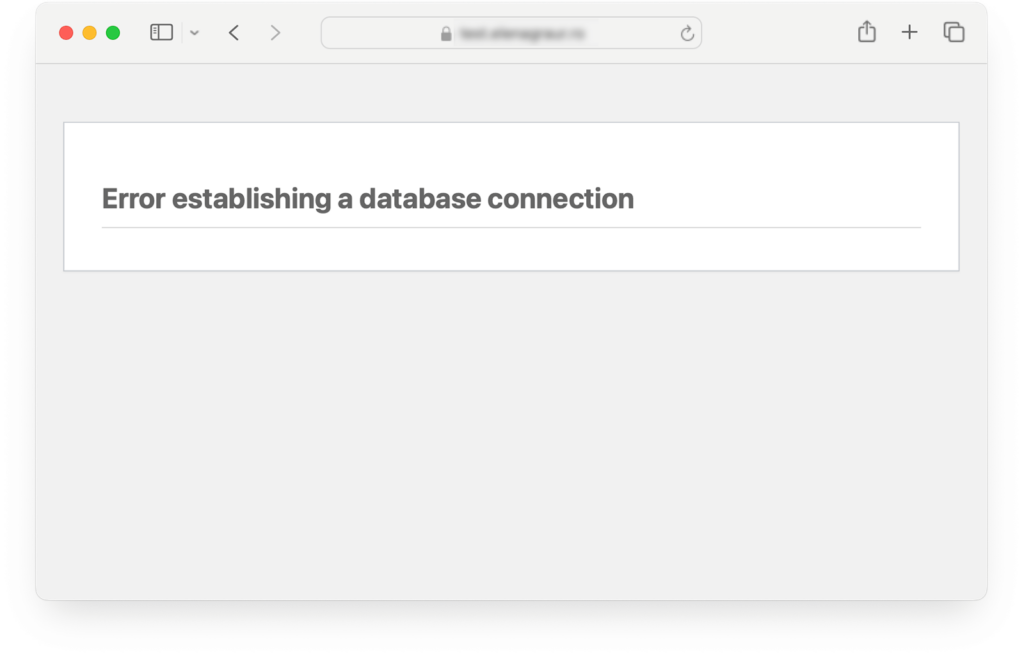
How to Fix “Error Establishing a Database Connection”
How to Solve It Step by Step
- Double-Check wp-config.php: Access your site via FTP (using tools like FileZilla) and open wp-config.php. Verify these lines:
- define(‘DB_NAME’, ‘your_database_name’);
- define(‘DB_USER’, ‘your_database_username’);
- define(‘DB_PASSWORD’, ‘your_database_password’);
- define(‘DB_HOST’, ‘localhost’); // This is usually ‘localhost’, but some hosts use IPs or custom hosts. Make sure there are no extra spaces or quotes. Save and upload if changes are needed.
- Create or Repair the Database: Log into your hosting control panel. In cPanel, go to MySQL Databases. Create a new database if needed, add a user, and assign all privileges. If it exists, use phpMyAdmin to repair tables (select all and choose “Repair table” from the dropdown).
- Test Database Connection: Create a simple PHP file (e.g., testdb.php) with this code:text
<?php $link = mysqli_connect('DB_HOST', 'DB_USER', 'DB_PASSWORD'); if (!$link) { die('Could not connect: ' . mysqli_error()); } echo 'Connected successfully'; mysqli_close($link); ?>Replace with your credentials and upload it. Visit yourdomain.com/testdb.php. If it says “Connected successfully,” the issue is elsewhere. - Contact Your Host: If credentials are correct but it fails, your host might have server-side issues. Check their status page or open a support ticket. Hosts like SiteGround or Bluehost often resolve this quickly.
- Advanced Fix: Define Repair Mode: Add define(‘WP_ALLOW_REPAIR’, true); to wp-config.php, then visit yourdomain.com/wp-admin/maint/repair.php to run the repair tool.
Prevention Tip: Use auto-installers like Softaculous if your host offers them—they handle database creation automatically. Always back up before tweaking files.
2. White Screen of Death (WSOD)
Ah, the infamous White Screen of Death—your browser loads a completely blank page with no error message. This often occurs right after uploading WordPress files or during the install script execution, leaving you staring at nothingness.
What Causes It?
- PHP Errors or Conflicts: A fatal PHP error in the core files, often from incompatible PHP versions (WordPress recommends PHP 8.0+ in 2026). If you’re on an outdated server (e.g., PHP 7.4), syntax issues arise.
- Memory Limit Exhausted: Installation scripts can be memory-intensive, especially with large uploads or plugins pre-installed.
- Plugin or Theme Conflicts: If you uploaded a custom theme or plugin before install, it might clash.
- File Corruption or Incomplete Upload: FTP interruptions can leave files incomplete, breaking the script.
- Server Configuration: Mod_security rules or .htaccess issues can silently kill the page.
This error is sneaky because it suppresses output, but it’s common during initial setup when the script tries to run.
9 Proven Methods to Fix the WordPress White Screen of Death
How to Solve It Step by Step
- Enable Debugging: Edit wp-config.php and change define(‘WP_DEBUG’, false); to true. Add define(‘WP_DEBUG_LOG’, true); and define(‘WP_DEBUG_DISPLAY’, false); to log errors without showing them on-site. Refresh the page, then check wp-content/debug.log for clues (e.g., “Fatal error: Allowed memory size exhausted”).
- Increase PHP Memory Limit: In wp-config.php, add define(‘WP_MEMORY_LIMIT’, ‘256M’);. If that doesn’t work, edit php.ini (via hosting panel) or .htaccess with php_value memory_limit 256M. Contact your host if you can’t access these.
- Deactivate Plugins and Themes: Via FTP, rename the plugins folder to plugins_old (this deactivates all). If the site loads, reactivate one by one. For themes, rename your active theme folder and WordPress will default to Twenty Twenty-Six.
- Re-Upload Core Files: Download a fresh WordPress zip from wordpress.org, extract, and upload everything except wp-content (to preserve your data). This fixes corrupted files.
- Check Server Logs: In cPanel, view Error Logs. Look for PHP fatal errors and address them (e.g., update PHP version via MultiPHP Manager).
Prevention Tip: Test on a staging site first. Use hosts with one-click installs to skip manual uploads.
3. 500 Internal Server Error
This generic error appears as “500 Internal Server Error” or a blank page with a server message. It often strikes midway through installation, like when submitting database details.
What Causes It?
- .htaccess Corruption: The install script generates or modifies .htaccess for permalinks, but syntax errors can crash the server.
- Permissions Issues: Folders like wp-content need 755 permissions; files 644. Wrong settings block script execution.
- PHP Timeouts or Resource Limits: Long-running install processes exceed server limits.
- Plugin/Theme Incompatibilities: Pre-installed add-ons conflicting with the core.
- Server-Side Problems: CGI/FastCGI issues or exhausted resources on shared hosting.
In 2026, with stricter security in hosts like AWS or Google Cloud, mod_security false positives are common.
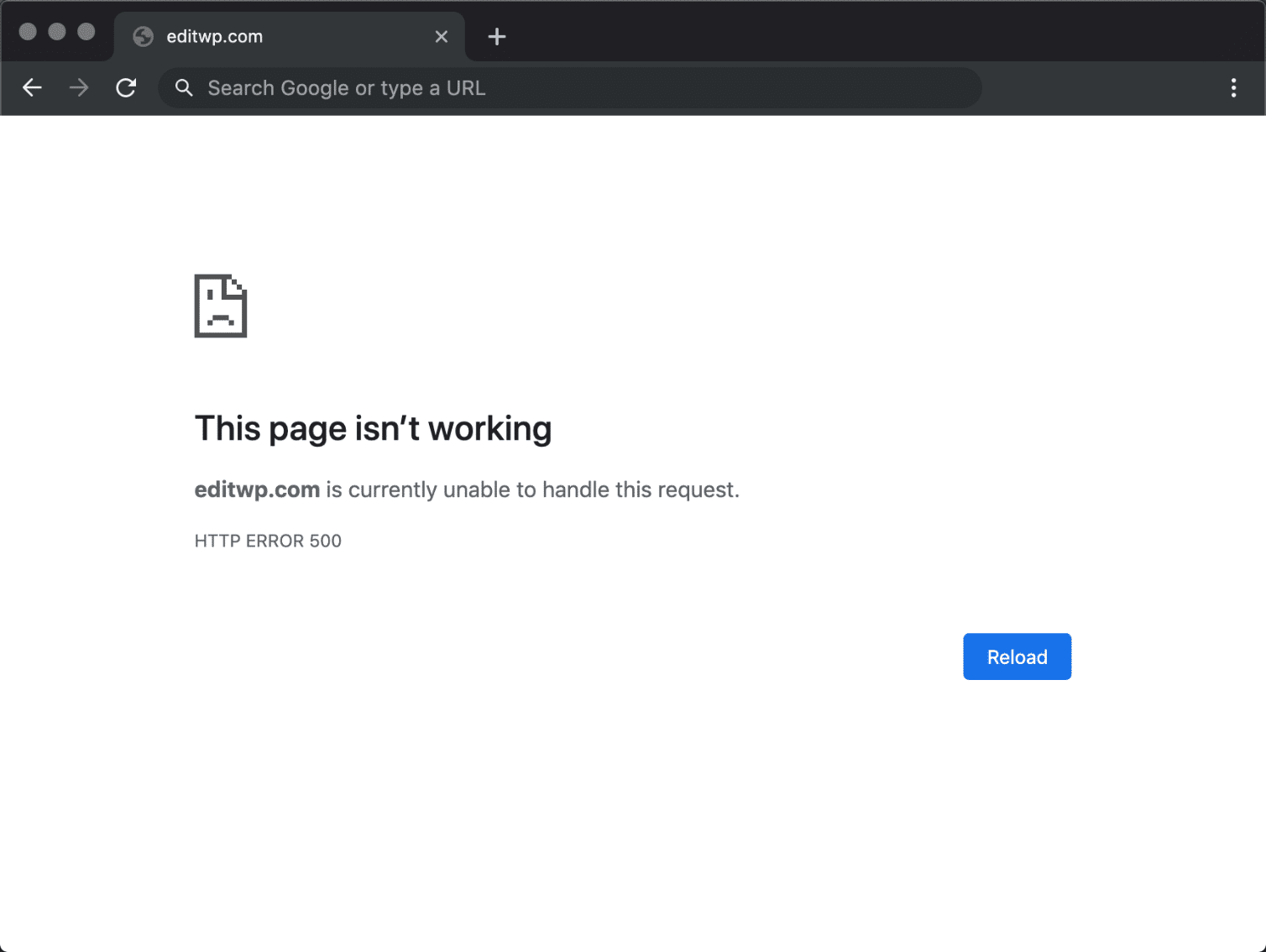
How to Fix a 500 Internal Server Error (11 Steps)
How to Solve It Step by Step
- Rename .htaccess: Via FTP, find .htaccess in the root, rename to .htaccess_old. Refresh— if it works, regenerate via Settings > Permalinks > Save Changes.
- Fix File Permissions: Use FTP to set directories to 755 and files to 644. Avoid 777—it’s a security risk.
- Increase PHP Limits: Add to .htaccess: php_value max_execution_time 300 and php_value max_input_time 300. Or edit php.ini.
- Deactivate Plugins: Rename plugins folder as before and test.
- Switch PHP Versions: In hosting panel, try PHP 8.1 or 8.2. If it’s a module conflict, ask support to disable mod_security temporarily.
Prevention Tip: Use a .htaccess tester tool before install. Opt for managed WordPress hosting like WP Engine for auto-optimized servers.
4. Parse Error: Syntax Error, Unexpected…
You’ll see something like “Parse error: syntax error, unexpected ‘}’ in /path/to/file.php on line 42.” This halts the install script dead in its tracks.
What Causes It?
- Code Edits Gone Wrong: Manual changes to wp-config.php or other files with missing semicolons, brackets, or quotes.
- Corrupted Uploads: Files altered during transfer.
- Incompatible PHP: Old code not playing nice with modern PHP.
- Plugin/Theme Code: Bad code in add-ons uploaded pre-install.
This is a PHP parsing issue, common when editing config during setup.
How to Fix “Parse Error: Syntax Error Unexpected” in WordPress
How to Solve It Step by Step
- Identify the File and Line: The error message points to the exact spot. Open via FTP or editor.
- Fix the Syntax: Look for missing ;, }, or “. Use a code editor like VS Code for highlighting.
- Revert Changes: If recent edit, undo it. Re-download fresh files if needed.
- Enable Debugging: As in WSOD, to get more details.
- Update PHP: Ensure compatibility.
Prevention Tip: Use copy-paste for credentials. Validate PHP code with online linters.
5. Maximum Execution Time Exceeded
Error: “Fatal error: Maximum execution time of 30 seconds exceeded.” This happens if the install script takes too long, often on slow servers.
What Causes It?
- Slow Server Response: Shared hosting with high load.
- Large Installs: Importing demo data or large files.
- Looping Scripts: Bugs causing infinite loops.
- Low PHP Limits: Default is 30 seconds.
Common in manual installs with extras.
How to Fix Fatal Error Maximum Execution Time Exceeded
How to Solve It Step by Step
- Edit .htaccess: Add php_value max_execution_time 300.
- wp-config.php Tweak: Add set_time_limit(300); at the top.
- php.ini Change: Set max_execution_time = 300.
- Host Support: Ask to increase server-wide.
- Optimize Install: Remove unnecessary plugins first.
Prevention Tip: Install on localhost first (using Local by Flywheel), then migrate.
Final Thoughts: Staying Error-Free in WordPress Installs
These errors might seem daunting, but with systematic troubleshooting—starting with basics like credentials and permissions—you’ll resolve them quickly. Always back up your site (even during install) using tools like UpdraftPlus. For 2026, keep WordPress updated to 6.4+ for better error handling. If stuck, forums like WordPress.org support or Stack Overflow are goldmines. Happy installing—your site awaits!


