

In 2026, shoppers expect instant, intuitive product discovery on WooCommerce stores. A single slow or poorly designed filter set can increase bounce rates by 30-50% and slash conversions. The secret to standout e-commerce? Smart, fast, SEO-optimized product filters that feel effortless on desktop and mobile.
Enter Filter Everything — the lightweight, all-in-one WordPress & WooCommerce Product Filter plugin trusted by over 160,000 sites. Whether you sell fashion, electronics, furniture, or custom products, Filter Everything delivers blazing-fast AJAX filtering, clean SEO-friendly URLs, and beautiful layouts without bloating your site.
This ultimate guide covers everything: why filters matter, how Filter Everything excels in speed/SEO/UX, and a complete step-by-step setup for 2026 standards.
Why WooCommerce Product Filters Are Non-Negotiable in 2026
Modern buyers filter ruthlessly:
- 70%+ abandon carts when they can’t quickly narrow options.
- Mobile-first shoppers demand swipeable, responsive filters.
- Google prioritizes fast, user-friendly experiences in rankings.
Without proper filters, your shop page becomes overwhelming. Good filters boost:
- User Experience (UX): Instant results, no page reloads.
- Speed: AJAX + optimized queries keep load times under 2 seconds.
- SEO: Indexable filter pages with clean URLs drive organic traffic.
Filter Everything stands out because it handles any post type (products, posts, custom content) by any criteria (attributes, taxonomies, price, custom fields, brands, ratings) — all in one plugin.
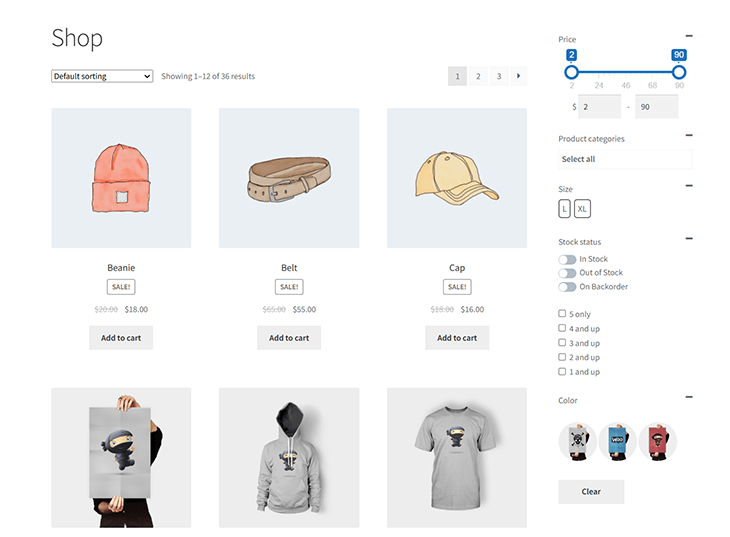
WooCommerce Sidebar Filter Customization: Detailed Tutorial
Filter Everything: Key Features That Win in 2026
Core Strengths:
- Lightning-Fast AJAX Filtering — Products update instantly without full reloads. Optimized SQL queries ensure performance even on stores with 10,000+ products.
- SEO-Optimized — Clean URLs (e.g., /shop/color-blue/size-large/), indexable filter archives, and PRO SEO Rules for meta titles/descriptions.
- Mobile-First Design — Collapsible filters, horizontal/vertical layouts, perfect for phones and tablets.
- Unlimited Filter Sets — Create different filters per category, archive, or page (PRO).
- Flexible Layouts — Checkboxes, radio buttons, sliders, color swatches, dropdowns, range inputs.
- Sorting & Search — Built-in keyword search and custom sorting.
- Lightweight & Compatible — Works with any theme, Elementor, Divi, Gutenberg, page builders, and caching plugins. Minimal CSS/JS footprint.
- Free + PRO — Free version covers 90% of needs; PRO adds advanced SEO, individual filters per page, and premium support.
Users rave about its speed and simplicity compared to heavier alternatives.

Filter Everything — Product Filter & WordPress Filter | Review 2026
Step-by-Step: Installing and Setting Up Filter Everything
Step 1: Install the Plugin
- Go to Plugins > Add New in your WordPress dashboard.
- Search “Filter Everything”.
- Install and activate the free version from wordpress.org.
- (Optional) Upgrade to PRO via filtereverything.pro or CodeCanyon for unlimited features.
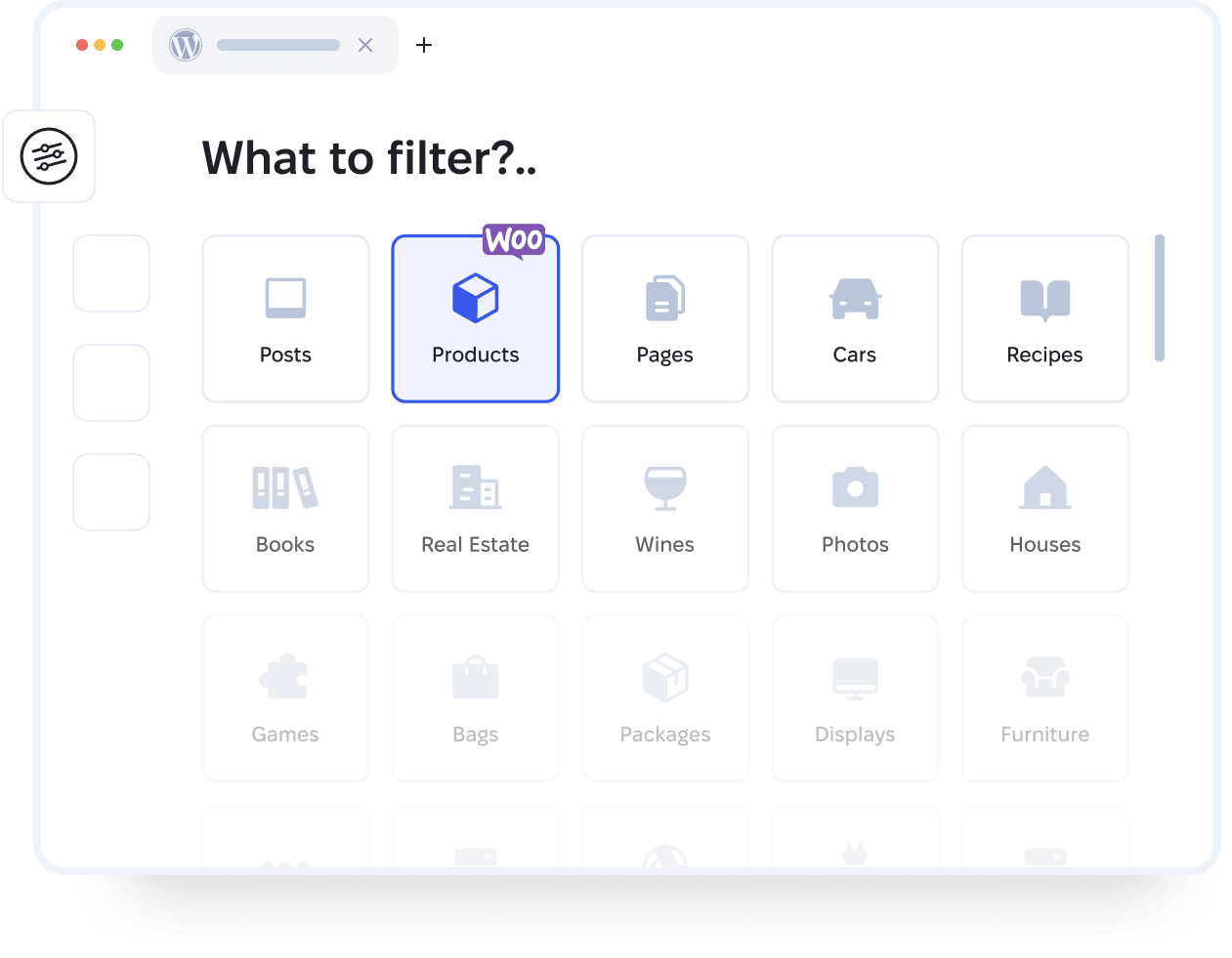
FilterEverything.Pro – WordPress and WooCommerce product filter plugin
Step 2: Create Your First Filter Set
- Navigate to Filter Everything > Filter Sets > Add New.
- Give it a name (e.g., “Shop Filters”).
- Select Post Type = Products (WooCommerce).
- Choose where to display: Shop page, specific categories, or archives.
Step 3: Add Filters Click Add Filter and configure:
- Price → Range slider
- Category / Brand → Checkboxes or dropdowns
- Color / Size → Color swatches or labels
- Custom Fields → Any ACF or Woo attribute
Set view type, label, and URL prefix (e.g., “color-” for clean SEO URLs).

Customizing WooCommerce Sidebar Filters: Detailed How-To Guide
Step 4: Place Filters on Your Shop Page
- Use the Filter Everything widget/block in your sidebar or header.
- Or add via shortcode [filter_everything] anywhere.
- For Elementor/Divi users: Dedicated widgets make placement drag-and-drop easy.
Step 5: Configure Settings for Speed & SEO Go to Filter Everything > Settings:
- Enable AJAX (instant updates).
- Turn on “Hide empty filters”.
- Set mobile collapse behavior.
- In PRO: Configure SEO Rules for dynamic titles and noindex options.
Step 6: Test & Optimize
- Clear cache.
- Test on mobile/desktop.
- Monitor speed with tools like GTmetrix.

Guide to How to Set up Filtering by Category in WooCommerce
Advanced 2026 Tips: Maximize Speed, SEO & UX
- Speed Hacks — Combine with a good caching plugin (WP Rocket/LiteSpeed) and CDN. Filter Everything’s lightweight code ensures <1-second filter responses.
- SEO Power Moves — Use PRO’s SEO Rules to create unique meta descriptions for filtered pages. Add schema markup for richer search results.
- UX Best Practices — Show active filters as removable chips. Include a “Clear All” button. Use color swatches for visual appeal.
- Analytics Integration — Track filter usage in Google Analytics to refine popular filters.
- Multi-Language Ready — Fully compatible with WPML/Polylang.

Customizing WooCommerce Sidebar Filters: Detailed How-To Guide
Real Results: What Stores Gain with Filter Everything
- Higher Conversions — Shoppers find products 3-5x faster.
- Lower Bounce Rates — Intuitive filters keep users engaged.
- Better SEO Traffic — Filter pages rank for long-tail queries like “blue sneakers size 10”.
- Scalability — Handles massive catalogs without slowdowns.
Compared to other plugins, Filter Everything wins for its balance of features, performance, and affordability (free core + one-time PRO purchase).
Final Thoughts: Filter Smarter in 2026
Don’t let a cluttered shop page cost you sales. Filter Everything transforms your WooCommerce store into a fast, SEO-friendly, delightful shopping experience that customers love — and Google rewards.
Install the free version today, follow this guide, and watch your product discovery soar. Whether you’re a small boutique or a large marketplace, this plugin is the 2026-standard solution.


