

Hey there! If you’re just dipping your toes into the world of trading or charting, TradingView is like that super-friendly neighbor who’s always got the best tools to lend. It’s a powerful online platform for analyzing stocks, forex, crypto, commodities—you name it. Whether you’re a total newbie or someone who’s traded a bit but wants to level up, this guide is for you. We’ll walk through everything step by step in a chill, conversational way, like we’re chatting over coffee. No jargon overload, I promise—I’ll explain each part clearly.
By the end, you’ll know how to sign up, navigate the interface, customize charts, add indicators, set alerts, and even use some cool 2026 features. Plus, we’ll touch on the mobile app for trading on the go. And hey, since TradingView has a free tier, you can start without spending a dime. Let’s jump in!
What is TradingView and Why Use It in 2026?
Okay, first things first: TradingView is basically a one-stop shop for charting and technical analysis. It’s not a broker (though it integrates with many), but it’s where you go to visualize market data, spot trends, and make smarter decisions. In 2026, it’s bigger than ever, with over 50 million users worldwide. What makes it awesome for beginners?
- Free Basics: You get real-time data, charts, and community ideas without paying.
- User-Friendly: Intuitive design—no steep learning curve.
- Community Power: Share ideas, follow pros, and learn from millions of charts.
- 2025 Upgrades: Things like up to 16 charts on one screen, custom intervals (even seconds), and integrations with new futures like CoinEx perpetuals.
Compared to old-school platforms, TradingView feels modern and social. It’s like Instagram meets stock charts. If you’re into stocks, crypto, or forex, it’s a game-changer because it pulls data from everywhere and lets you customize endlessly.
Step 1: Signing Up for TradingView
Alright, let’s get you started. Signing up is super simple and takes about 2 minutes. Head over to TradingView.com (or download the app). You’ll see a “Sign Up” button at the top right.
- Choose Your Method: You can sign up with email, Google, Apple, or even X (formerly Twitter). I recommend email for full control.
- Enter Details: Pop in your email, create a password, and pick a username. That’s it—no credit card needed for the free plan.
- Verify Email: Check your inbox for a confirmation link and click it.
- Pick a Plan: Start with Basic (free). If you want more (like no ads or extra charts), upgrade to Plus, Pro, or Premium later. In 2025, Premium lets you have those 16 charts per layout—handy for multi-monitoring.
Pro tip: If you’re serious, use my affiliate link to sign up—it supports creators like me and might snag you a deal. Click here: Start TradingView
Once signed in, you’ll land on the homepage with a default chart. Boom, you’re in!

Sign-in with browser in TradingView Desktop app — TradingView Blog
Step 2: Navigating the Main Interface
Now that you’re logged in, let’s tour the dashboard. It’s divided into sections, but don’t worry—it’s not overwhelming.
- Top Bar: Search for symbols (e.g., type “AAPL” for Apple stock). Switch between chart types, timeframes (like 1-minute or daily), and save layouts.
- Left Sidebar: Drawing tools—lines, shapes, Fibonacci retracements. Think of it as your artist’s palette for marking up charts.
- Right Sidebar: Watchlist for tracking favorites, alerts, news, and community ideas.
- Bottom Panel: Trading panel if connected to a broker, or strategy tester for backtesting ideas.
- Main Chart Area: Where the magic happens. Zoom with your mouse wheel, pan by dragging.
In 2025, they’ve added a global command search—hit “/” and type what you need, like “add RSI” to quickly pop in an indicator. Spend 5 minutes clicking around; it’s the best way to get comfy.
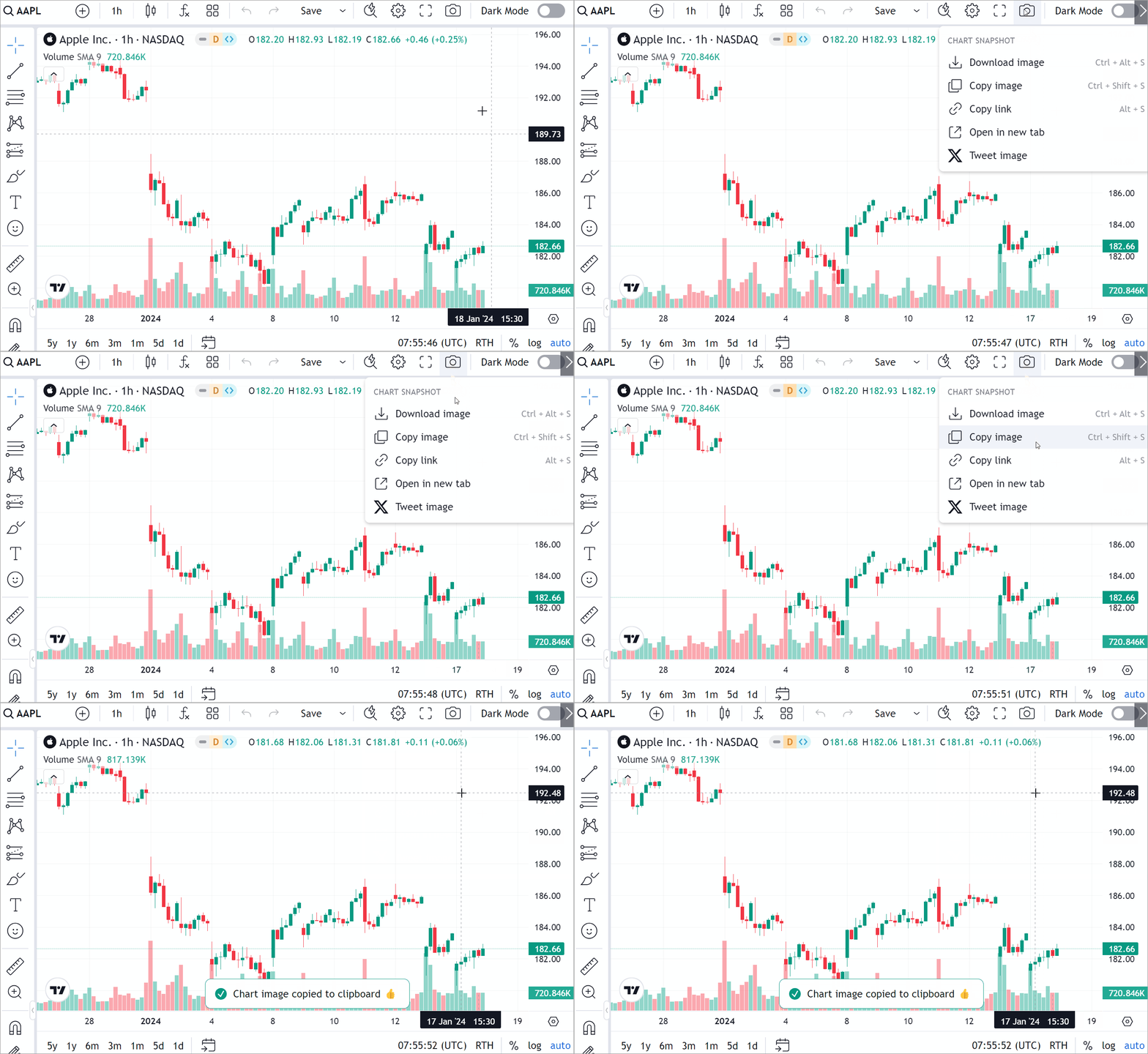
Snapshots | Advanced Charts Documentation
Step 3: Creating and Customizing Your First Chart
Time to make a chart! From the homepage:
- Search a Symbol: Type something like “BTCUSD” for Bitcoin. Hit enter—it loads instantly.
- Change Chart Type: Click the candle icon in the top bar. Try candlesticks (shows open/high/low/close) or line charts for simplicity.
- Adjust Timeframe: Buttons like “1D” for daily or “5m” for 5-minute. For beginners, start with daily to see big-picture trends.
- Customize Appearance: Right-click the chart > Settings. Change colors (e.g., green for up candles), add grid lines, or switch to dark mode for those late-night sessions.
- Multi-Charts: In paid plans, click the grid icon to split into 2-16 charts. Compare Apple vs. Tesla side-by-side.
Customization is key—make it yours so it’s easy on the eyes. In 2025, you can even create spreads (like Gold minus Silver) for advanced correlations.
Step 4: Adding Indicators and Drawing Tools
Indicators are like X-ray glasses for charts—they reveal hidden patterns. TradingView has hundreds built-in.
- Open Indicators Menu: Click the “Indicators” button at the top (looks like a squiggly line).
- Search and Add: Type “Moving Average” and select SMA (Simple Moving Average). It plots a line averaging prices over time—great for trends.
- Customize It: Double-click the indicator on the chart to tweak periods (e.g., 50-day vs. 200-day) or colors.
- Popular Ones for Beginners:
- RSI (Relative Strength Index): Measures if something’s overbought (above 70) or oversold (below 30).
- MACD: Spots momentum changes with crossovers.
- Bollinger Bands: Shows volatility—prices hugging the edges might signal a breakout.
For drawings: Select from the left sidebar. Draw trendlines by clicking two points, or add text notes. Save everything to your layout so it’s there next time.
Here’s an example of a chart with indicators—see how the moving averages cross for buy/sell signals?

Trading Strategies & Indicators Built by TradingView Community
Step 5: Setting Up Alerts and Watchlists
Don’t stare at charts all day—let TradingView notify you.
- Create a Watchlist: Right sidebar > Add symbol. Group them (e.g., “Tech Stocks”).
- Set an Alert: Right-click a price level on the chart > “Create Alert.” Choose conditions like “Crossing Up” a certain price.
- Customize Notifications: Get emails, app pushes, or even SMS (paid). In 2025, alerts are smarter with custom scripts.
This keeps you in the loop without constant checking.
Step 6: Using the Mobile App
TradingView’s app (iOS/Android) is a mini version—perfect for on-the-go.
- Download and Log In: Search “TradingView” in your app store. Use your credentials.
- Navigate: Bottom tabs for charts, ideas, news. Swipe to draw or add indicators.
- Trade If Connected: Link your broker for real orders.
It’s not as full-featured as desktop, but great for quick checks.

How to Screenshot on Tradingview (Mobile App)
Advanced Features in 2025 for When You’re Ready
Once basics click, explore:
- Pine Script: Code your own indicators (no coding experience needed—tutorials abound).
- Backtesting: Test strategies on historical data.
- Social Features: Publish ideas (see for how), follow traders.
- Integrations: Connect to brokers for direct trading.
- New in 2025: Synchronized drawings across charts, range bars, and more data sources.
Tips for Beginners to Avoid Common Pitfalls
- Start small: Practice on demo accounts if your broker allows.
- Learn one thing at a time: Master moving averages before diving into fractals.
- Join the community: Read ideas, but don’t copy blindly—understand why.
- Risk management: Never risk more than 1-2% per trade.
- Stay updated: Check TradingView’s blog for new features.
Remember, trading involves risk—educate yourself and maybe paper trade first.
Wrapping It Up
Whew, that was a lot, but you’ve got this! TradingView in 2026 is an incredible tool for beginners—free, powerful, and community-driven. Start with signing up if you want to support me), play around with charts, and build from there. Practice consistently, and you’ll see your skills grow. If you hit snags, their help center or YouTube tutorials are gold.
Questions? Drop ’em in the comments. Happy charting!


