

Why Your WordPress Media Library Won’t Load (And How FileBird Fixes It)
How to fix WordPress Media Library not loading?
Nothing kills your workflow faster than opening Media > Library in WordPress and watching it spin forever—or worse, showing a blank white screen with no images. In 2026, even on modern hosting, the Media Library still struggles when your site grows. Thousands of uploads, unoptimized images, conflicting plugins, and poor database queries turn a simple grid into an endless loading nightmare.
The good news? Most cases are fixable in minutes, and the smart long-term solution is installing FileBird—the popular media library folder plugin that dramatically improves performance while organizing your files.
Common Reasons Why WordPress Media Library Won’t Load
Here are the top culprits behind the infamous loading issue:
- Too Many Files in One Place WordPress loads the entire library at once (or in huge batches). With 5,000+ images, the admin-ajax.php calls become extremely heavy, causing timeouts or infinite spinners.

How to Fix Media Library Loading Images Problem in WordPress
- Unoptimized Large Images High-resolution photos, unprocessed RAW files, or thousands of unoptimized PNGs consume massive server resources and bandwidth during thumbnail generation.
- Plugin and Theme Conflicts Security plugins, caching tools (WP Rocket, LiteSpeed), page builders, or other media organizers overload the library screen.
- Server Resource Limits Low PHP memory_limit, max_execution_time, or slow database queries on shared hosting.
- Database Bloat Orphaned attachments, old postmeta entries, or huge wp_posts table slow down every media query.
- JavaScript Errors or Outdated Browser Console errors from conflicting scripts often break the grid view entirely.

How to Fix Media Library not Loading in WordPress | Images not Showing – YouTube
Quick General Fixes (Try These First)
- Increase PHP limits (memory_limit to 256M+, max_execution_time to 300).
- Disable all plugins except FileBird (if installed) and test.
- Clear all caches (site, browser, CDN).
- Regenerate thumbnails with a plugin like Regenerate Thumbnails.
- Optimize existing images with Smush, Imagify, or ShortPixel.
- Switch to List view temporarily (it loads faster than Grid).
These help short-term, but they don’t solve the root problem of a flat, unorganized library.
How FileBird Fixes the Media Library Loading Problem
FileBird (by Ninja Team) is more than just a folder organizer—it intelligently improves performance by changing how WordPress handles media queries.
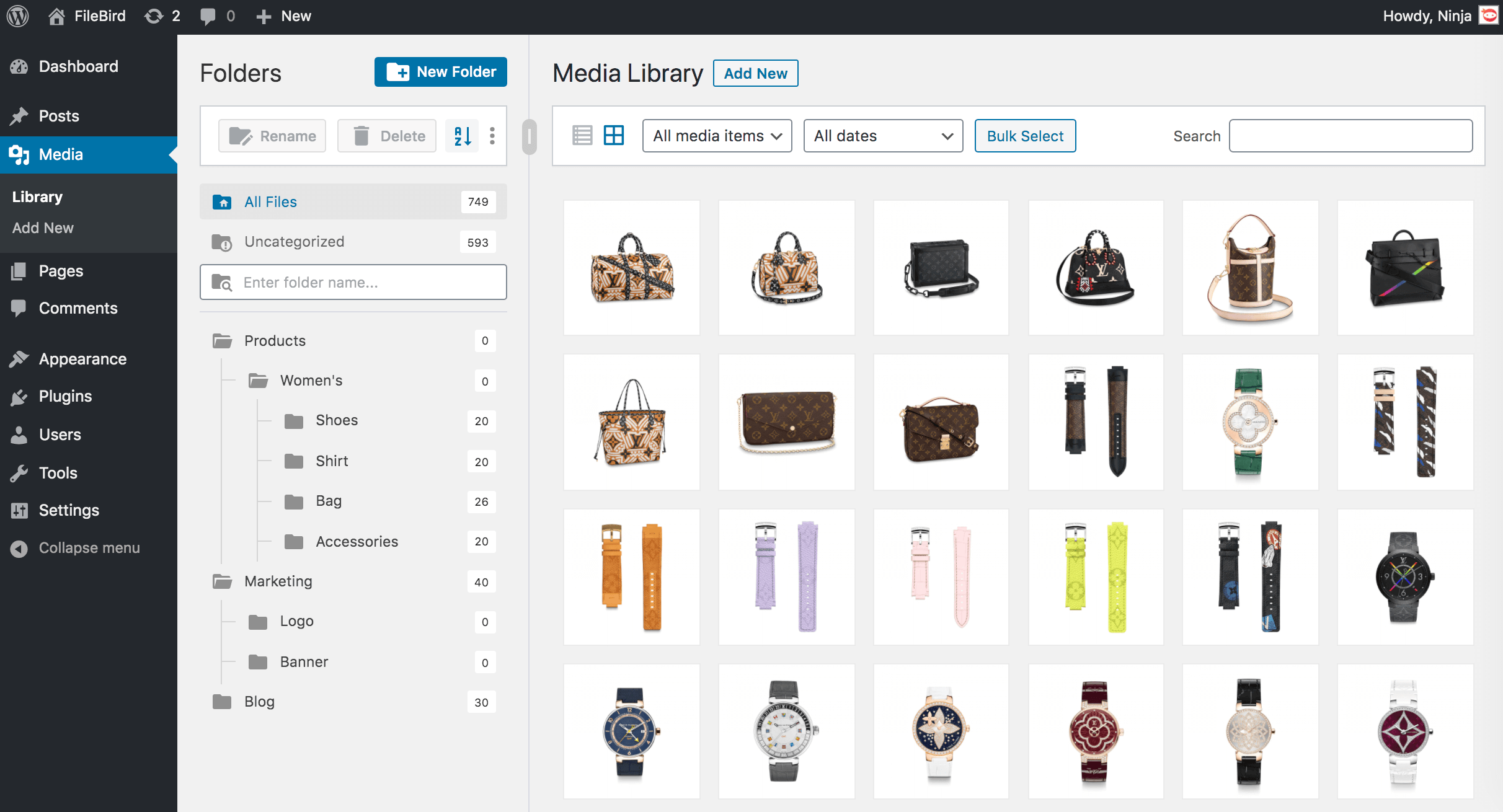
FileBird – WordPress Media Library Folders & File Manager – افزونه وردپرس | WordPress.org فارسی
Key Ways FileBird Helps:
- Virtual Folders & Smart Loading — Instead of loading every single file on the main screen, FileBird lets you browse by folders. You only load the contents of one folder at a time, drastically reducing server load and AJAX requests.
- Faster Queries — The plugin adds efficient indexing and filters so WordPress doesn’t scan the entire uploads table every time.
- Bulk Actions & Cleanup — Move hundreds of files at once, delete unused media, and keep “Uncategorized” under control—preventing future bloat.
- Lightweight Code — FileBird is optimized for 2026 WordPress standards. It works smoothly with Gutenberg, Elementor, and WooCommerce without adding heavy overhead.
- Subfolder Support — Deep hierarchy means you rarely open a folder with 1,000+ items. Performance stays snappy even on sites with 50,000+ media files.
Users consistently report that after installing FileBird and moving files into organized folders, the library loads 5–10x faster.
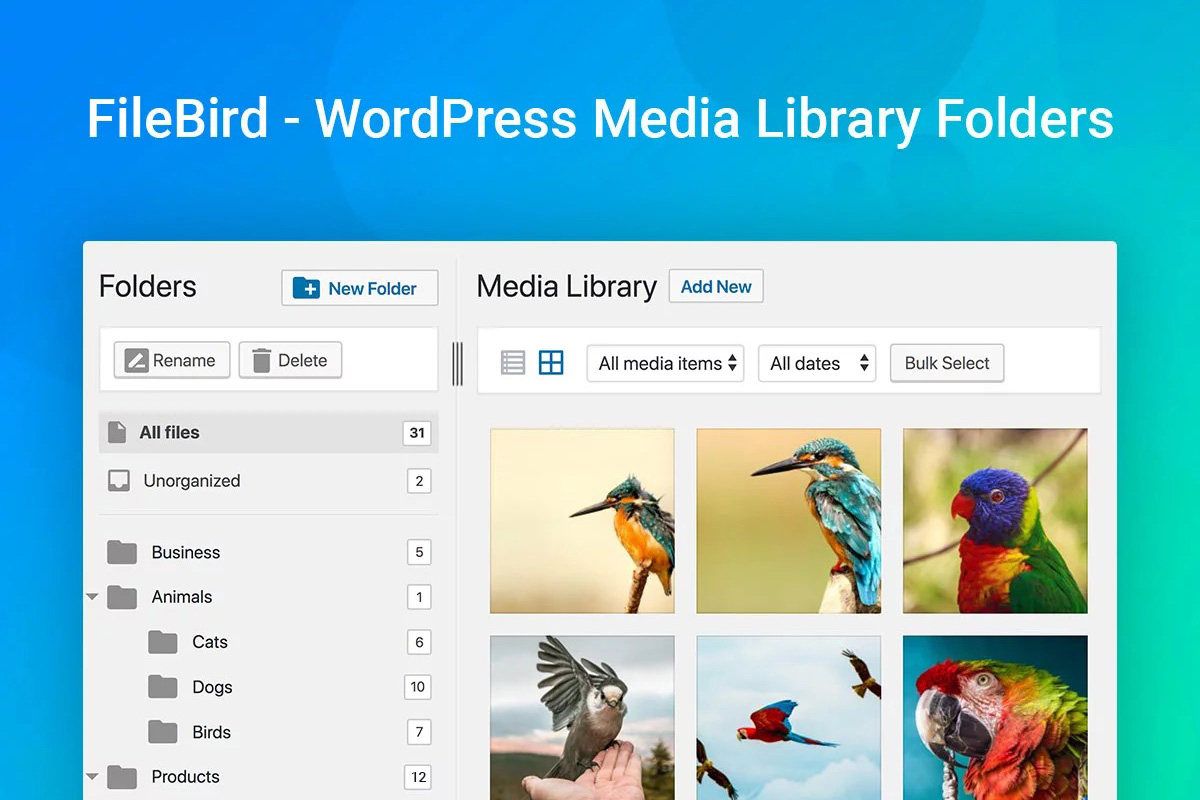
10+ Best Plugins to Organize Your WordPress Media Library
Step-by-Step: Install FileBird and Fix Your Slow Media Library
- Install FileBird Go to Plugins > Add New, search “FileBird”, install and activate the free version (Pro unlocks unlimited folders and advanced features).
- Enable Folders for Media After activation, a clean Folders sidebar appears in the Media Library. Go to FileBird Settings if needed and ensure Media Library is enabled.
- Create Logical Folders Click + New Folder and organize:
- Blog Images
- Product Photos
- Banners & Headers
- Documents & PDFs
- Archives (by year)
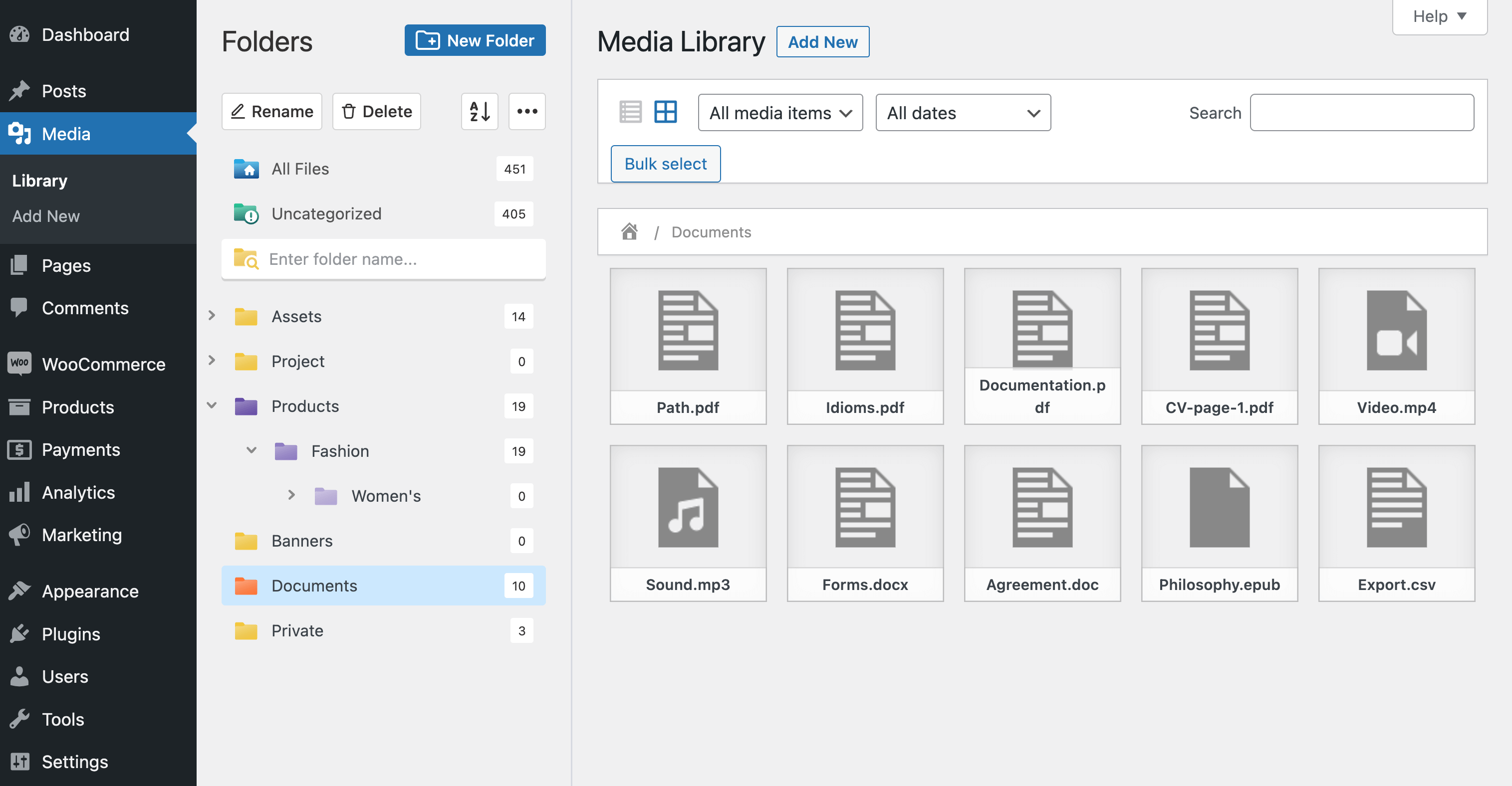
FileBird Document Library – WordPress plugin | WordPress.org
- Upload Directly into Folders From now on, select a folder before uploading—new files go exactly where they belong, preventing future chaos.
- Enjoy Instant Loading Switch between folders in seconds. The main “All Files” view becomes optional and much lighter.
Pro Tip: Combine FileBird with an image optimizer. Optimize first, then organize. Your library will feel brand new.
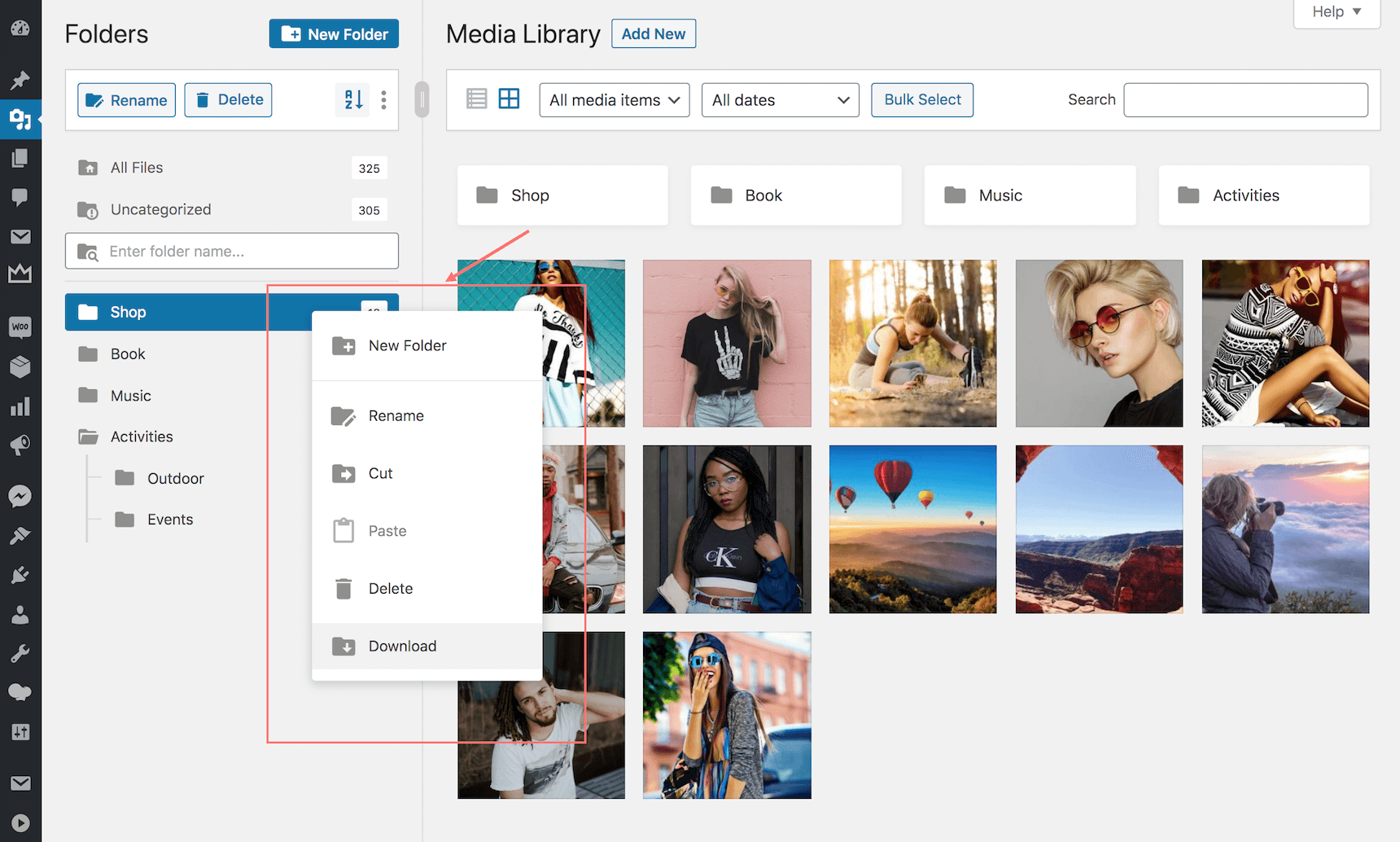
How to troubleshoot WordPress media library not loading – Ninja Team
Bonus Performance Tips While Using FileBird
- Use the built-in search inside specific folders.
- Regularly empty the “Uncategorized” folder.
- In Pro version, enable folder permissions for team sites.
- Pair with a good caching plugin and CDN for the frontend.
Final Thoughts
A slow or non-loading WordPress Media Library isn’t just annoying—it kills productivity and can indicate deeper performance issues. While general tweaks help temporarily, FileBird provides the smartest, long-term fix by introducing structure and smarter loading.
Install FileBird today, organize your media, and say goodbye to endless spinning loaders. Your site (and your sanity) will thank you.


