

Hey there, trader! If you’re serious about technical analysis in 2026—whether you’re trading crypto like BTC or ETH, forex pairs, stocks, or anything else—mastering drawing tools on TradingView is one of the best skills you can build. These tools let you visually map out trends, key price levels, potential reversals, and high-probability zones right on your chart.
Trendlines show direction and dynamic support/resistance, Fibonacci tools reveal mathematically significant retracement and extension levels (like the famous 0.618 “golden ratio”), and horizontal lines/rectangles mark classic support and resistance zones where price often reacts.
In this detailed, step-by-step guide, we’ll walk through exactly how to access, draw, customize, and use these pro-level tools on TradingView (web, desktop, or mobile). No fluff—just practical tips to make your charts cleaner, smarter, and more profitable.
If you’re ready to unlock more drawing freedom (unlimited objects, advanced layouts, no ads), start with a free trial here: Join TradingView
Let’s jump in!
Getting Started: Accessing the Drawing Toolbar in TradingView
First, make sure your drawing tools are visible:
- On the left side of any chart, look for the vertical toolbar (it has icons like a line, arrow, Fib symbol, etc.).
- If it’s hidden: Click the three horizontal lines (or pencil icon on mobile) at the top-left or check View > Drawing Toolbar.
- Hotkeys speed things up: Alt + T for Trend Line, Alt + F for Fib Retracement, Alt + H for Horizontal Line.

Drawing tools available on TradingView — TradingView
This shows the full drawing toolbar icons—your one-stop shop for everything from lines to patterns and Fib tools.
Pro tip: Right-click any drawing later to edit style, lock it (so it doesn’t move when zooming), copy, or delete. Use the Object Tree (bottom-right panel) to manage multiple objects.
1. Drawing Trendlines Like a Pro
Trendlines connect swing highs/lows to visualize trend direction and dynamic support/resistance.
Why use them? In uptrends, trendlines act as rising support (buy dips); in downtrends, as falling resistance (sell rallies). Breaks often signal reversals or continuations.
Step-by-step to draw a trendline:
- Select the Trend Line tool from the left toolbar (straight line icon, or Alt + T).
- For an uptrend: Click once on a significant swing low (first touch point), then click on a higher swing low (second point). Release—TradingView draws the line.
- For a downtrend: Start at a swing high, then connect to a lower swing high.
- Extend it: The line continues rightward automatically (ray mode if you want infinite extension).
- Adjust: Click the line → drag endpoints for precision. Right-click > Settings to change color (green for uptrend, red for down), thickness, style (solid/dashed), and add labels.
Pro techniques:
- Use at least 2-3 touches for validity—more touches = stronger line.
- Draw parallel channels: Select Parallel Channel tool, draw base trendline, then drag for upper/lower bounds.
- Validate breaks: Wait for candle close beyond the line + volume increase.
- On crypto charts: Trendlines shine on higher timeframes (4H/daily) to avoid noise.

Trend lines – how to build them and how to use them? for BINANCE:BTCUSD by truepersonal — TradingView
Example of a clean uptrend trendline on BTC—price bounces multiple times, confirming support.

Drawing Trendlines: A Practical Guide for BINANCE:BTCUSDT by Vestinda — TradingView
Another BTC daily chart with a rising trendline—perfect for spotting pullback entries.
2. Mastering Fibonacci Tools (Retracement & Extension)
Fibonacci tools are based on key ratios (0.236, 0.382, 0.5, 0.618, 0.786, etc.) from the Fibonacci sequence—traders love them for predicting pullbacks and targets.
Why essential? The 0.618 “golden ratio” often marks deep retracements where price reverses. Extensions (1.272, 1.618) project profit targets.
How to draw Fibonacci Retracement:
- Select Fib Retracement from the toolbar (Fib icon, or Alt + F).
- In a bullish move: Click and drag from swing low to swing high.
- In a bearish move: Drag from swing high to swing low.
- Levels appear automatically (0% at start, 100% at end).
- Customize: Right-click the Fib → Settings. Hide unwanted levels (e.g., keep 0.382, 0.5, 0.618, 0.786). Change colors (0.618 often green/gold). Add extensions by checking “Reverse” or using Fib Extension tool.
Common pro setups:
- Golden Zone: Focus on 0.618–0.786 for deep pullbacks (high-probability reversal area).
- Combine with trendlines: Fib levels + trendline confluence = stronger support.
- Use extensions: After breakout, draw Fib Extension from swing low → high → retracement low to project targets.
Fib Tips for 2026:
- On volatile crypto: Use log scale charts + Fib for big moves.
- Validate: Look for price rejection (wicks, pin bars) at Fib levels + volume.

A Comprehensive Guide to Fibonacci Retracements (Updated) for COINBASE:BTCUSD by XForceGlobal — TradingView
Detailed Fib retracement guide on BTC—shows bullish/bearish setups with golden 0.618 zone.
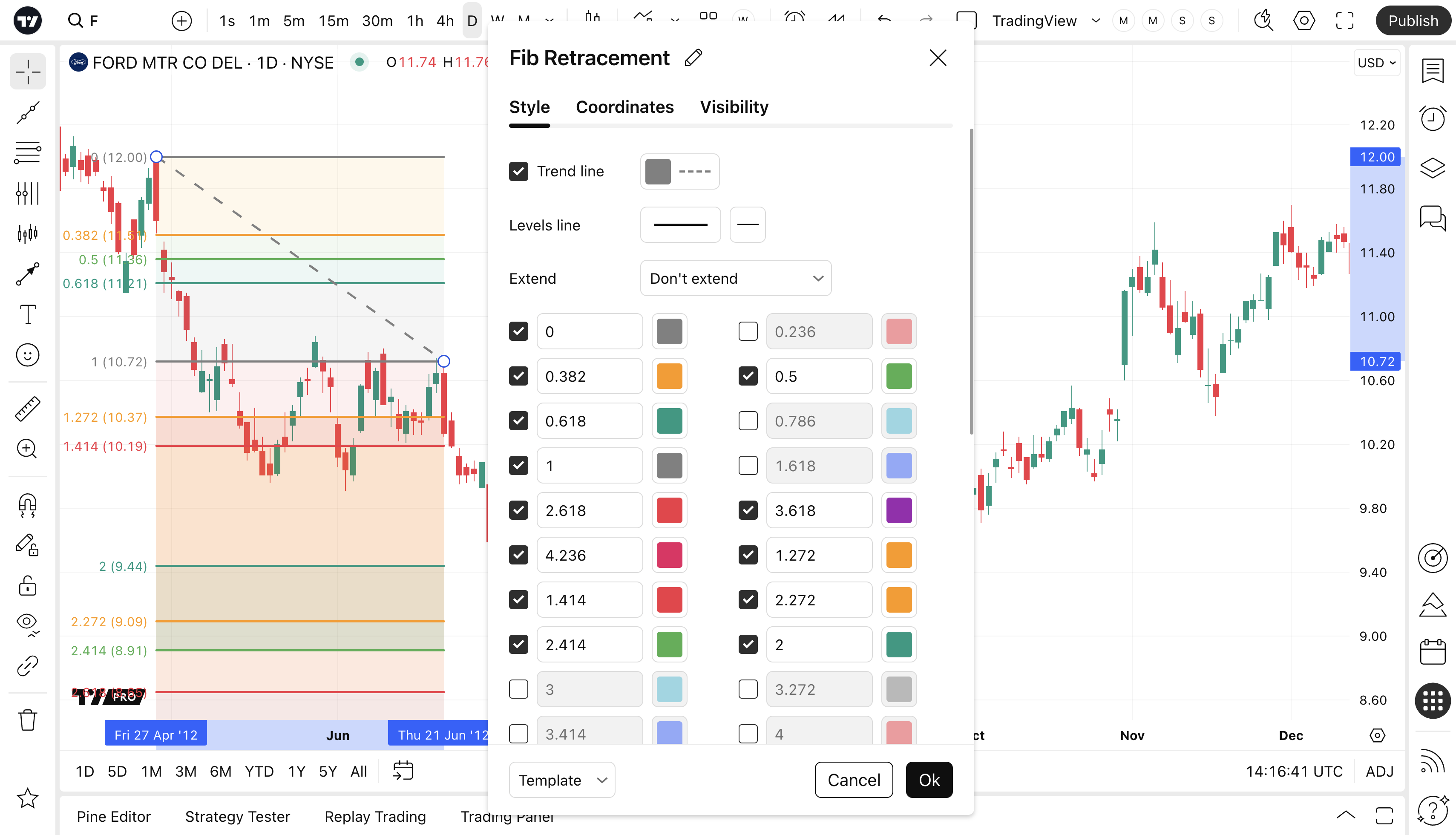
Fib Retracement — TradingView
TradingView’s Fib settings popup—customize levels, styles, and visibility like a pro.
3. Drawing Support & Resistance Like a Pro
Support = price floor (buyers step in); Resistance = price ceiling (sellers dominate). Horizontal lines mark static levels; zones use rectangles for ranges.
Step-by-step:
- Select Horizontal Line tool (Alt + H) for single levels.
- Click once at a key price where price reversed multiple times (previous highs/lows, round numbers like BTC $100K).
- For zones: Use Rectangle tool → drag to cover the area between levels (e.g., thick zone around a level).
- Customize: Right-click → change color (blue support, red resistance), make dashed, add text labels (“Major Support”), set visibility per timeframe.
Pro ways to identify/draw S/R:
- Look for swing highs/lows with multiple touches or wicks rejecting the level.
- Round numbers/psych levels (1.1000 on EURUSD, $50K on BTC) act as magnets.
- Use previous highs/lows from higher timeframes (daily/weekly S/R on 1H chart).
- Confluence: Draw where Fib 0.618 + horizontal level + trendline meet.
- Flip zones: Broken resistance becomes support (and vice versa)—mark with different color.

Support and Resistance, A way to draw a horizontal line ! for OANDA:XAUUSD by DatTong — TradingView
Classic horizontal support/resistance lines on a gold chart—multiple touches confirm strength.

👊 Support And Resistance Levels Explained 👊 for FX_IDC:EURUSD by FOREXN1 — TradingView
EURUSD with shaded support/resistance zones—price respects the boxed areas repeatedly.
Advanced Tips to Draw Like a Pro in 2026
- Lock drawings: Right-click > Lock to prevent accidental moves.
- Sync across devices: Drawings save to cloud—mobile/desktop sync perfectly.
- Templates: Save your favorite setups (e.g., Fib + trendline combo) via top bar > Templates.
- Multi-timeframe: Draw major weekly S/R on daily chart for context.
- Clean charts: Use Object Tree to hide/delete clutter; limit to 3-5 key drawings per chart.
- Combine tools: Trendline bounce + Fib 0.618 + horizontal support = high-conviction trade.
Practice on replay mode—draw historical levels, then fast-forward to see if price respected them.
Wrapping It Up
Mastering trendlines, Fibonacci, and support/resistance turns your TradingView charts from basic price plots into powerful decision-making machines. Start simple: Pick one tool (say, horizontal S/R), practice on 5-10 charts, then layer in trendlines and Fib. Consistency beats perfection—keep drawing, keep learning.
Your charts will thank you, and so will your P&L. Ready for unlimited drawings and pro features? Upgrade via Join TradingView.
Which tool are you mastering first—trendlines, Fib, or S/R? Drop a comment below!


